
- Why is Office 365 so popular—one of the greatest mysteries of our time
- The past two weeks have been two of the most frustrating weeks in recent memory
- Sharing is caring, but Office 365 doesn’t care about sharing—not efficiently, anyway
- There are no shortcuts in life—unless you use Google Docs
- I’ve always liked structure—I miss the outline pane in Google Docs
- Most of my complaints are minor annoyances, but not this one
- Free can’t be as good as a paid product, can it?
- Isn’t being 100% online dangerous?
- Other random but annoying things
- Why is Office 365 so popular—Excel may be part of the answer
- If Word came on the market today, it wouldn’t succeed
Why is Office 365 so popular—one of the greatest mysteries of our time
Working as an English copywriter and proofreader requires a word processor. Every computer I’ve owned had Microsoft Office on it—until my current computer. When I bought it, Microsoft Office wasn’t included. I didn’t want to fork out my own money for Office 365, so I decided to see if I could get by with Google Docs. Honestly, I want to know—why is Office 365 so popular?
Not only was I able to get by, I realized I didn’t need Microsoft Word. If clients sent me Word docs, I saved them to Google Drive and opened them in Google Docs. I could then share the Google Doc with the client when I was done or save it as a .doc/.docx file and send it back.
All my blog posts have been written in Google Docs and copied into WordPress. Both of the main clients I’ve worked with for several months only use Google Docs. It’s super easy to share, collaborate on files, and leave comments for each other. And then it happened…
One of my clients switched to Office 365. It wasn’t a decision that was up for debate. Everyone on the team had to give up Google Drive, Gmail, and Google Docs. We said hello to OneDrive, Outlook, and Microsoft Word. Part of me was curious to see what I’d been missing only using Google Docs. Maybe there’s something I’m missing about why Office 365 is so popular. Getting reacquainted with Word was going to be interesting.
The past two weeks have been two of the most frustrating weeks in recent memory
I am flabbergasted as to why Microsoft Office is a leader in the industry. Honestly, why is Office 365 so popular? Growing up, other than WordPerfect and Open Office, it was all we had. It was a staple (like Windows), and we used it without thinking about it. Microsoft Office was on every computer. It was ubiquitous.
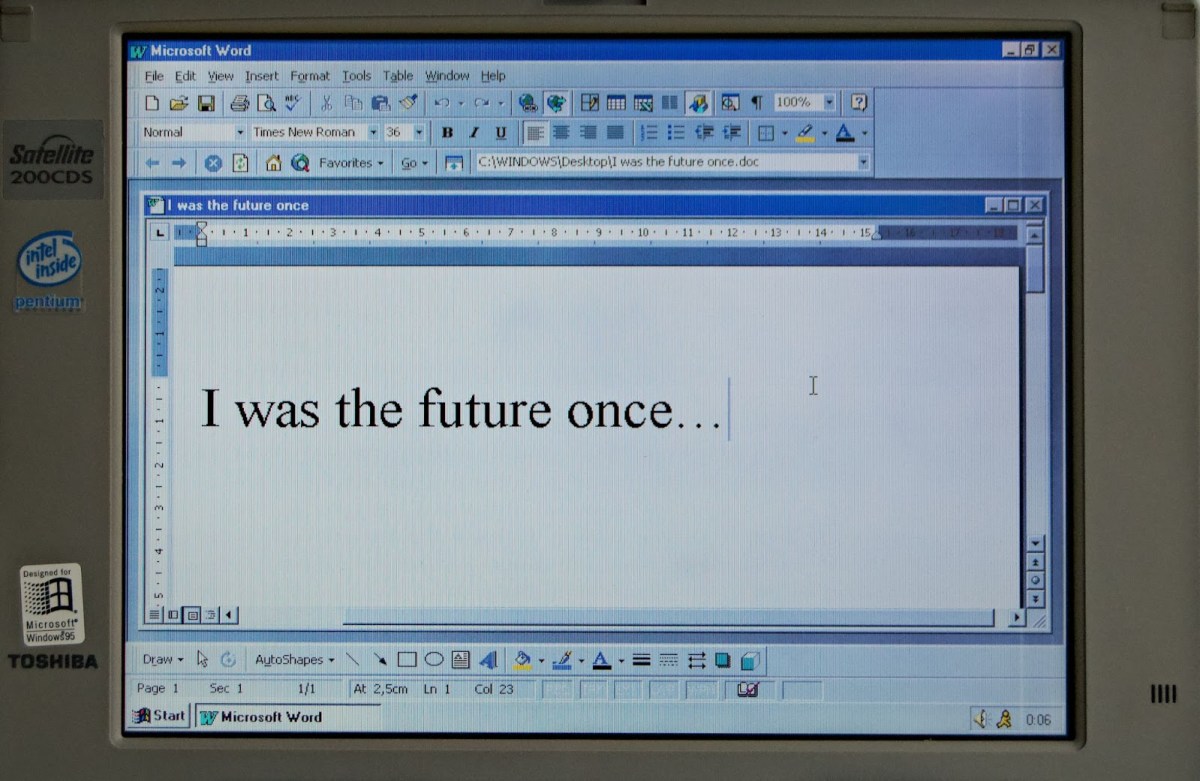
That doesn’t mean it’s good. It’s not. I would go so far as to say Office 365 is some of the most user-unfriendly software I’ve had the displeasure of using. It’s like the designers are out to kill productivity and efficiency.
As an English copywriter in Korea, my word processor is my most-used tool. Most of what I could do in Google Docs is either much more cumbersome in Office 365—or impossible.
I’ve lost so much productivity over the past couple of weeks trying to figure out how to do the most basic of things. After Googling and reading, I usually come to a dead-end. Just a bunch of people complaining about the same issue or missing feature—with no solution in sight.
Sharing is caring, but Office 365 doesn’t care about sharing—not efficiently, anyway
File sharing is essential when working on a team. With Google Docs, once file-sharing permissions are set for a file, it takes two clicks to share a file.
Click “Share” → Click “Copy Link”.
Microsoft 365 requires six clicks—every time you need to share a file.
Click “Share” → “People you specify can edit” → “Select Audience” → “Apply” → “Copy Link” → Click “X” to close the dialogue box.
Every. Single. Time.

When sharing a document, sometimes it’s helpful to link to a specific part of the document. With Google Docs—easy! Click “Insert” → “Bookmark.” You can then copy the link to that bookmark and share it. When the recipient clicks on that link, the document will open and jump to the bookmarked section.
Adding bookmarks is confusing and cumbersome in Word. To the best of my knowledge, there is no way to share a bookmark link from Word. If you know something I don’t, I’d be forever grateful for your help!
Oh, and if you should ever have to share a file outside your organization—good luck. If the planets are aligned, Mercury is in retrograde, and some monks perform the right chant, it might work. But don’t hold your breath.
There are no shortcuts in life—unless you use Google Docs
One of my biggest complaints about Office 365 is its lack of keyboard shortcuts. Granted, Google Docs doesn’t allow you to customize your shortcuts, and I would love that option. But there are enough keyboard shortcuts for most of what I need.
With Office 365, I can create customized shortcuts in the desktop app. I’ve recreated several of the ones I’m used to using in Google Docs, but guess what? Those shortcuts don’t work in the web version! And there’s no option to create shortcuts in the web version.

Keyboard shortcuts are all about efficiency. Using “Ctrl + C” saves several seconds versus navigating to the edit menu and clicking “copy.” A few seconds doesn’t seem like much. But over the course of a day, those seconds add up. “Standard” shortcuts work in the web apps but not the custom shortcuts you’ve created.
It’s not hard to add keyboard shortcuts to your routine, either. Find one you need and add it to your routine for a week. Add a new one the following week. There’s no need to try and memorize 20 new keyboard shortcuts in a week.
One of my favorite shortcuts in Google Docs is Ctrl+Shift+V to paste plain text (with no formatting). I use this so often, but there is no ability to create shortcuts in the web versions of Office 365. I had to install a standalone program that allows me to paste plain text with a keyboard shortcut.
The Ctrl+Alt+M shortcut works for inserting a comment on both the desktop and online versions, but all is not well. It turns out I cannot tag fellow team members in comments unless I’m using the desktop app. That’s a handy feature—NOT!
I’ve always liked structure—I miss the outline pane in Google Docs
The document structure pane on the left of Google Docs is great for large documents. Headings are added automatically (which I recreated in Word). You can then navigate the document quickly with them.
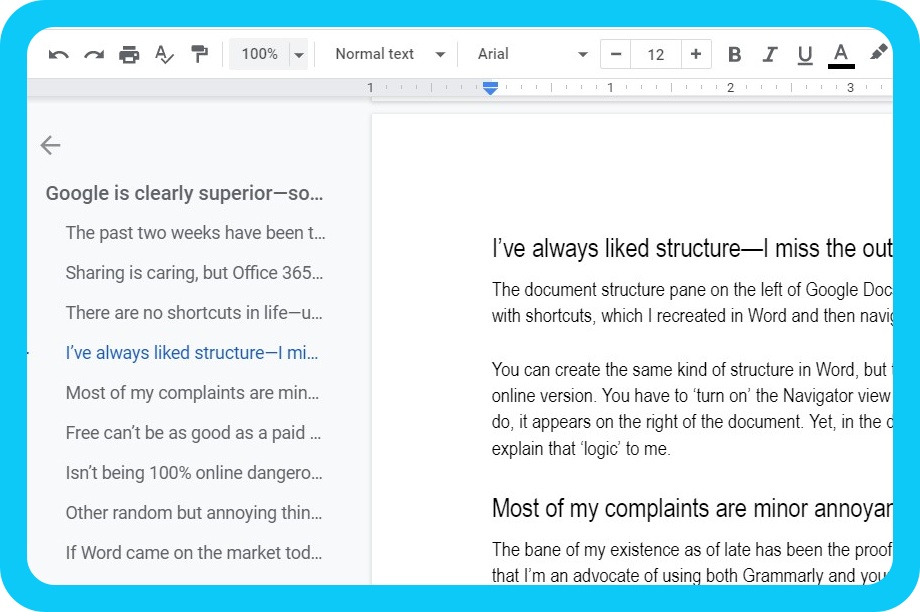
It’s possible to create the same kind of structure in Word. But—there’s no way to always display that pane in the online version. You have to “turn on” the Navigator view every time you open a document. And when you do, it appears on the right of the document. Yet, in the desktop version, it appears on the left. Someone explain that “logic” to me.
Most of my complaints are minor annoyances, but not this one
The bane of my existence as of late has been the proofing language function in Word. I’m an advocate for using Grammarly and your built-in spell-checker. They catch things the other doesn’t. Google Docs doesn’t have an option for Australian English, but it does have British English. The spelling conventions are close enough.
Word has an option for Australian English. Good luck if you can get it to work. The only proofing language I have installed in Word is Australian English. I don’t have English (US), Korean, or any other language installed. I’ve updated the “normal.dotm” file more times than I can remember. The proofing language for my documents is Australian English only about 47% of the time.
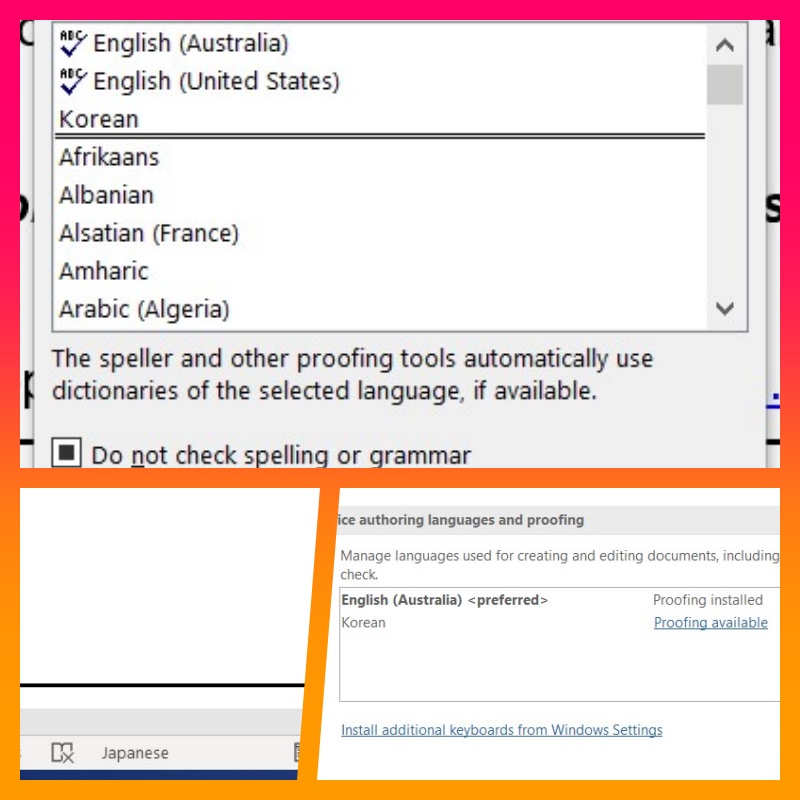
Usually, it reverts to English (US), but sometimes it defaults to just “English.” When I click on that to change it, the web app becomes unresponsive, and I’m forced to reload the page. Aside from English, the language has, at times, “defaulted” to Japanese and Korean. Neither of those languages is installed as a proofing language. I have Korean enabled in Windows but not in Office 365.
Grammarly (affiliate link) also doesn’t play nice with Word. There is a bug when viewing a Word file on your second monitor. The underlined corrections don’t line up properly. The fix for this? Move the document to your main screen. That’s a workaround but not a fix. Despite being in beta, Grammarly’s Google Docs integration is much smoother and effective.
Accurately proofreading my writing is essential to my job. I need to sort this functionality out. I’ve spent hours searching Google and even got help from Microsoft support. But the promised fix did not work, and when I tried to rejoin the support chat, I was locked out. I gave up.
Free can’t be as good as a paid product, can it?
Let’s talk about price for a moment. Google Docs is completely free. Yes, businesses must pay for Google Workspace, but there is no free version of Office 365. The site claims the web versions are free. But if you read the fine print, they’re only free with an Office 365 subscription. That ain’t free, my friend.

Google Workspace ranges from $6–$18/month. Microsoft 365 ranges from $5–$20/month, so for businesses, the pricing is comparable. Interestingly, personal Microsoft 365 Business Basic comes to $5.83/month.
I heard Microsoft was finally releasing a software package you could own in 2021. I remember thinking I’d wait to check that out before deciding whether to get Office 365 or not. That is if I decided I needed it. Office Home & Business retails for $249.99. You can install it on 1 PC, and there are no web versions of the apps. That’s just a little more than three years of an Office 365 subscription.
Isn’t being 100% online dangerous?
Google Docs is entirely online. Critics warn that when the Internet is down, you can’t work. Guess what? When the Internet is down, you can’t send any files anyway, regardless of the program you’re using. I suspect that if the Internet is down, you won’t be able to do any of your work anyway.
I’ve been working exclusively online since March, only using Google Docs. I haven’t had a single issue.
Office 365 has desktop apps, but it also has web versions of those apps. There’s only one problem—those web versions are seriously limited in functionality. They often require the user to open those files in the desktop app anyway. But as mentioned earlier, those web apps are only “free” to use with an Office 365 subscription. Most of the functionality built into Office 365 requires an Internet connection. I don’t buy that argument.

Other random but annoying things
I noticed a minor but perplexing missing feature. I recently discovered that the Shift key + scrolling with your mouse scrolls horizontally. This works in browser windows and thus works with Google Docs and Office web apps. This works in Excel, but it does nothing in Word. I have panes open on either side of my document, and I’m zoomed in. My eyes aren’t what they used to be! Thus, I sometimes need to scroll horizontally. Not in Word, my friends.
I have yet to figure out a way to select and move more than one file at a time in OneDrive. When I select more than one file, there is no option to move them in OneDrive. Sometimes, you need to move files rather than copy them, especially when you don’t want to have to re-link files.
If you move them, the links remain intact. Thus far, I’ve been reduced to moving files one at a time online. I can select and move several files using File Explorer. But only between folders synced to my computer. That “workaround” doesn’t work since I don’t have my client’s entire drive synced to my computer.
Why is Office 365 so popular—Excel may be part of the answer
If you use Excel for any sort of in-depth analysis, I will concede that Excel is far superior. But with a word processor, I will bet you don’t use 97% of the functionality that Word offers. And you’ll find the 3% that you do use will be hidden behind a multitude of mouse clicks.

But something Excel doesn’t do better than Google Sheets is hyperlinking. In Google Sheets, you can highlight text within a cell and add a hyperlink. In Excel, you can only select the entire cell. When using Ctrl+K to add a link, the field is partially prefilled with “https://.” Guess what 99.99% of the links I’ve copied and pasted start with? Yup—https://. So if I don’t delete that before pasting my link, my link won’t work (https://https:// isn’t a great way to start links).
If Word came on the market today, it wouldn’t succeed
My opinion is that Word has become too big and complicated. It tries to include every possible feature under the sun, but it doesn’t do anything well. A Swiss army knife has a lot of functionality. But none of its tools works better than the individual tool specifically designed for a particular task.

The bigger the knife, the more tools there are. But it becomes harder to use any of them effectively. They’re all bundled together in an unwieldy package.
I contend that most users don’t need the majority of features included with Office 365. Office 365 is so focused on trying to do everything it doesn’t do anything well. Excel is superior to Sheets, but Google Drive is far more user-friendly than OneDrive. Google Docs is a much more practical word processor.
Needless to say, I’m not a convert. I thought I was missing out on something and that I was getting by with Google Docs because it was free. It turns out I didn’t realize how good I had it.
Do you agree or disagree? Have you solved the great mystery—why is Office 365 so popular? Let me know in the comments. Share your Office 365 horror stories. Or better yet, prove me wrong and show me that the functionality I claim is missing actually exists.
Subscribe to this blog or follow me on Instagram, Threads, Facebook, LinkedIn, or Twitter for more content and updates.